
Sell More Services, Faster With a LinkedIn Service Page
Worried about a fixed salary or unemployment? Can’t compete on Fiver and Upwork to get clients? Don’t know how to sell your services? The solution to 100 problems is one: the LinkedIn Service Page. Yes, the truth is LinkedIn platform helps you provide freelance services with its other features, such as landing a new job, expanding your professional network, and upskilling.
But the question is, how can you earn through a LinkedIn page? How will you market your services? Unsure how to enhance your revenue by selling services on your LinkedIn page? That’s where ProResumes Do It Yourself (DIY) resources and certified digital career strategists guide you to set up a high-converting LinkedIn Service Page that attracts clients.
How to set up and optimize a LinkedIn Service Page?
To set up a LinkedIn services page, you should create your LinkedIn profile. The steps for creating a LinkedIn profile in 2025 have been changed. Earlier, LinkedIn didn’t ask for personal verification while opening the account, but now it asks to provide your ID proof along with a picture.
If you’re already a user, there is no need to provide ID proofs until you are involved in some robotic-type activities or LinkedIn finds any suspicious activities with your account.
6 Steps to follow for creating a LinkedIn Service Page
The LinkedIn navigation system is simple and easy to use. So, you don’t need any course or help to create your account and service page, but you may need guidance from LinkedIn experts to leverage this platform effectively. Every second individual has a LinkedIn account and services page, but not everybody knows how to rank higher and get more leads. Below are the simple steps to create your LinkedIn Services page on Desktop and Mobile for free.
Desktop
- Log in to your account and click on the “Me” icon at the top of your profile homepage
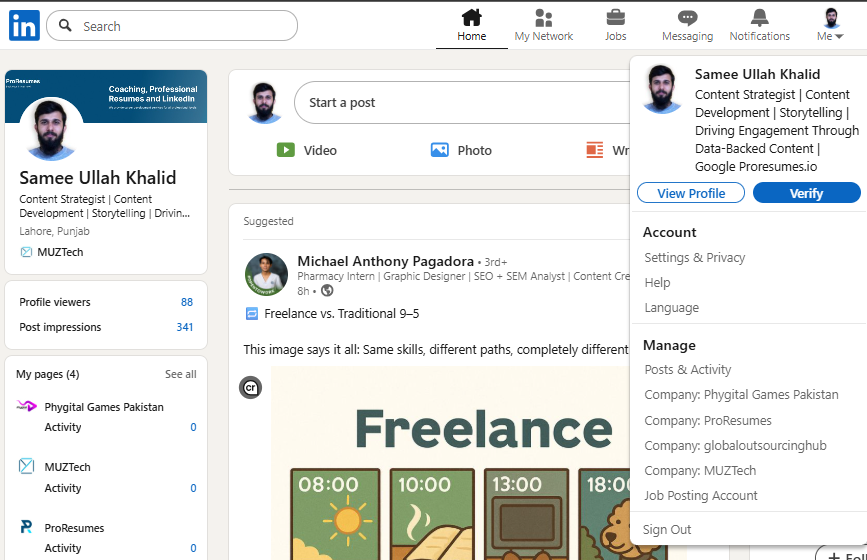
- Once the dropdown appears, click on “View Profile” for your complete profile view
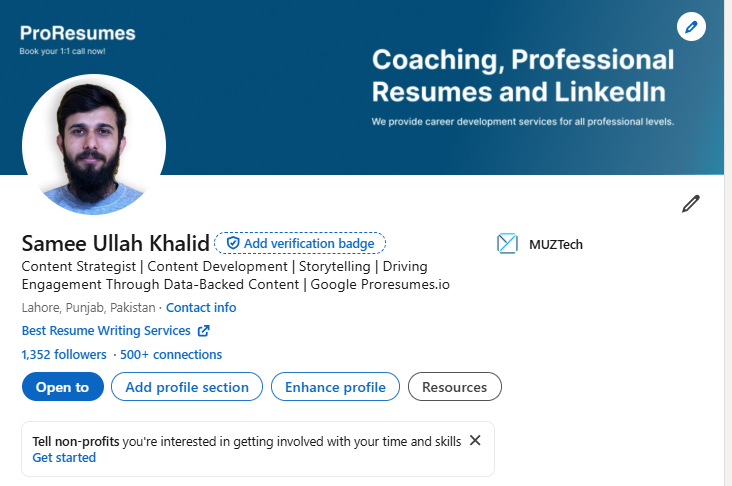
- “Add profile button” will appear under your profile picture. You need to click on this button.
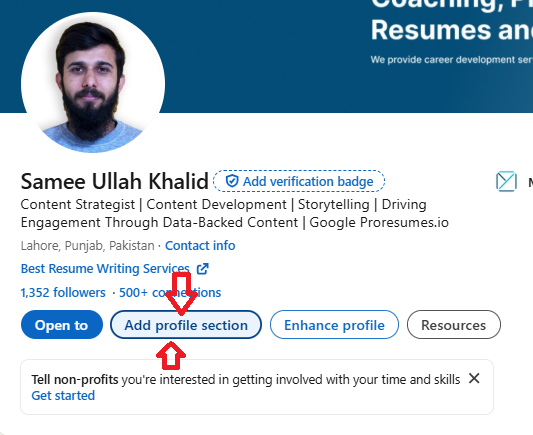
- After clicking the Add profile button, a list of categories will appear: Core, Recommended, and Additional. You will go to “Core.” A drop-down will appear again, and you will find “Add services” there.
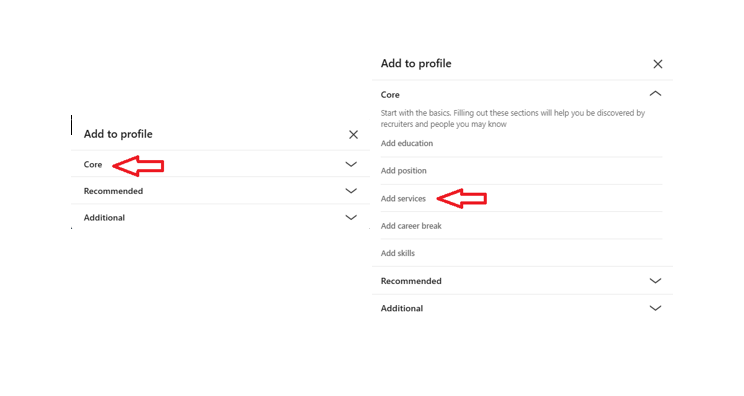
- After clicking “Add services”, a complete page will appear where you need to fill the each section.
- Search the trends and add up to 10 services in which you are an expert.
- Add the description for the LinkedIn Service Page About Section. Use rich industry keywords to improve your LinkedIn page visibility to clients looking for professionals in your field.
- Select your work location or service delivery type. You can select remote services, just physical, or both options for your services.
- The next part is “Pricing.” There are two options: Contact for Pricing and Starting from. You can select one. If you are an expert in setting the price, go with that option, but if you have set higher prices as compared to the market, maybe clients won’t contact you. So, let the client contact you, and then you can show your quality work per their requirements to finalize pricing.
- The next feature of the LinkedIn Service page is “Add Media”. You can add an image of at least 1,128 x 376 px, upload a video of 16:9 aspect ratio, or link to the relevant site, documents, or videos. LinkedIn Service page media feature allows for uploading up to 8 media items.
- Up next, you need to select the “Messages” option to allow 3rd degree connections and LinkedIn members or out-of-network clients to contact you for offered services.
- Your profile page allows you to get Reviews from your clients, and you can show and hide the feedback of your work from clients and LinkedIn users. We prefer turning this feature “On” to gain the trust of new clients.
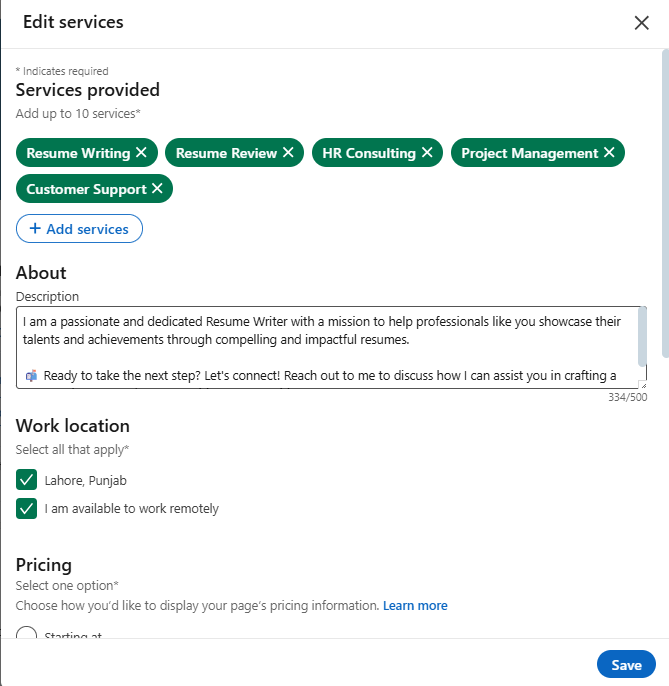
- Services Page is ready to publish
Click Save or Publish, and you are ready to start your career as CEO, Business Owner, or Freelancer.
Mobile
LinkedIn mobile navigation is different from the desktop. All the steps are the same, but the first step is different in the LinkedIn mobile application. For the desktop, you click on the “Me” icon to view your profile and get to the Add Profile section. But for mobile, you need to click on your “Profile Picture” two times to get access to the Add Profile Section.
LinkedIn Service Page Visible to Others.
If the question is about the placement of the service page per LinkedIn layout. Your services page will appear right after the LinkedIn About section, named “Services” for you and other LinkedIn users. But if the question is about your services page ranking, you need to fully optimize it.
Without an optimized LinkedIn profile and services page, no one will be able to find your business against the keywords in your industry. Everyone on LinkedIn is not aware of your name; they are aware of the services they are looking for. They will search for a professional through a service name or industry keywords.
To rank higher in the LinkedIn search, you need to post regularly, engage in professional community talks, participate in LinkedIn collaborative articles, organize workshops on LinkedIn, and get recommendations from industry leaders. Additionally, you can request maximum positive reviews for your LinkedIn service page and skills endorsements for your profile.
Pro Help: Want to improve your account visibility, ranking, and sales on LinkedIn? Contact ProResumes LinkedIn experts for maximum return on investment.
Does LinkedIn Service Page have an Admin Dashboard?
Yes, LinkedIn provides an admin dashboard for service pages. You can click on “Services” on the LinkedIn home page to view the admin controls. The admin control center provides access to Edit Page, track received client requests, handle ongoing and closed client projects, and manage review status.
Where Do Client Requests Appear After Someone Submits a Proposal?
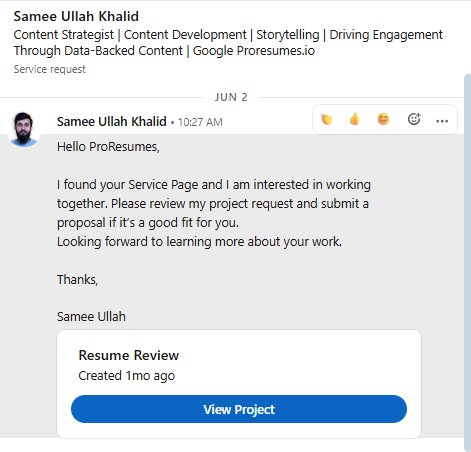
When someone visits your LinkedIn service page, they see the “Submit Proposal” button. Once they click on it, they fill out their requirements and submit the proposal. You will get an indication of the client request in the “Messaging” tab of your LinkedIn profile. Along with this, the entire detail will appear in the service page “Client Requests” tab.
Does LinkedIn Offer Premium Features for Service Pages?
LinkedIn doesn’t specifically offer paid services for service pages. But LinkedIn paid subscriptions, such as Premium Business or Sales Navigator, enhance your visibility, allow for InMail outreach to potential clients, and provide detailed insights into who’s viewing your profile. Moreover, if anyone requests services from the LinkedIn platform or the LinkedIn-owned services page, you will get notified along with other professionals providing services within your domain.
Key Differences Between Free and Premium Service Page Features?
According to LinkedIn policies, features for service pages are different for paid and free users. The screenshots below are directly taken from the LinkedIn official website for your comprehensive guidance on feature differences.
Features with a Premium Business subscription for LinkedIn users
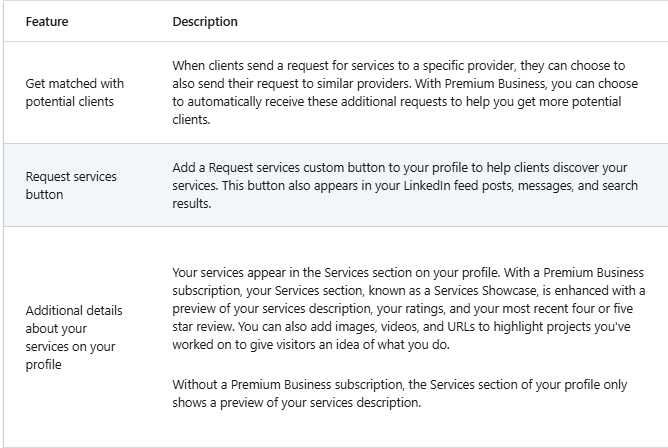
Features for users with a Premium Company Page subscription
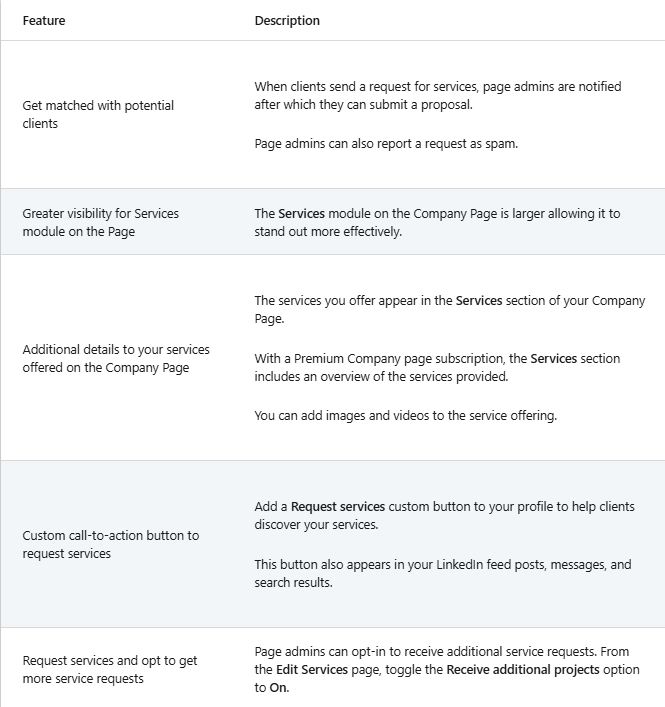
Pro Tip: LinkedIn offers a one-month free subscription to all users, along with discounts after leveraging the first free trial. You should avail this free subscription to rank higher and get more clients.
11 Tips to Get More Clients
- Optimize LinkedIn sections, including Headline, Experience, About, & Skills Section
- Revamp your Service Page by using industry keywords in the services section, adding success stories in the About Section, and uploading high-quality content to Media.
- Make your Service Page a Featured section on LinkedIn.
- Respond to client proposals professionally.
- Ask questions in your reply to understand the client’s intent.
- Provide a short solution outline or sample ideas in your first message.
- Offer free demos of your service.
- Respond quickly to proposals through LinkedIn messaging.
- Use LinkedIn’s “Open to Work” or “Providing Services” banner to boost profile visibility.
- Monitor insights from the admin dashboard.
- Adjust your time zone to manage global clients.
Conclusion
LinkedIn service page is a game-changer in 2025. An optimized LinkedIn profile and service page generate 10x faster revenue for you. Moreover, if you are using paid LinkedIn services, you will be the champ at getting business through the services page of your LinkedIn profile.
Looking to start selling through LinkedIn service page, but unsure how to leverage platform functionalities? Don’t lose the potential clients and contact ProResumes for ultimate success.