
How to Add a Job Promotion on LinkedIn?
With the involvement of professional platforms, ways of celebrating job events are changing. Earlier, you were able to share your professional achievements with just your colleagues, friends, and family members. You got promotion from Product Manager to VP of product management, what should be the next steps? You need to add promotion on LinkedIn and resume.
With the launch of LinkedIn, you can post and share good news about professional journeys such as getting a new job or getting promoted globally. Adding promotion on LinkedIn delivers dual value (two birds with one stone). When you post job promotion on LinkedIn within your recent company or past companies, this process just doesn’t maintain your LinkedIn job history accuracy. It also helps you in achieving three powerful goals at once.
- Positions you as a growing professional
- Receives 4x faster future job opportunities
- Promotes the culture of your current or past company
But if you are unaware of sharing this good news on this professional platform. You may fail to accomplish optimal job search or personal branding outcomes from LinkedIn. Worried about what are the key steps to add promotion on LinkedIn? The wait is over, ProResumes has written a comprehensive Do it yourself (DIY) guide for YOU.
Ways to add promotion on LinkedIn without changing and repeating employer.
LinkedIn features are user-friendly and easy-to-use. There are different ways to add career progression.
- Add promotion news in LinkedIn Headline
- Provide career progression details within the About Section
- Utilize professional experience section to add LinkedIn promotion
- Add as a new job
- Edit the details of current position
According to us the best way to add promotion on LinkedIn is under the header of professional experience as new job. If the question is raised in your if I add it as a new job, the employer’s name will repeat. But you are thinking wrong because LinkedIn algorithm or functionality is up to date. It will be considered as one company, and your titles will be updated separately.
How to add LinkedIn promotion as new job
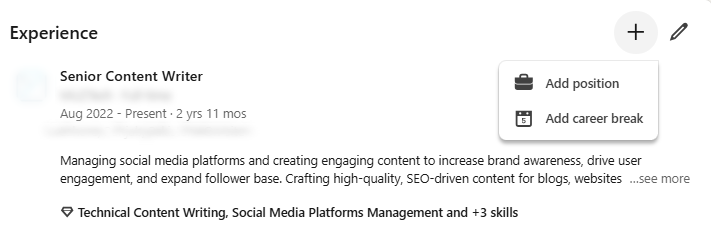
Adding job promotion on LinkedIn as a new job is simple. Just go to your profile, scroll down to the experience section, and click on “+” icon (called plus button, add symbol or add position icon). Once you click on it two options will appear,
1) Add position
2) Add career break
Once you click on “Add position” a complete form will be visible to you. You need to fill in the required details such as “New Job Title” (to which you got promotion), “Employer Name”, “Starting Date along with month” and “Description”. Along with these professional experience details, there will be an option to check one box.
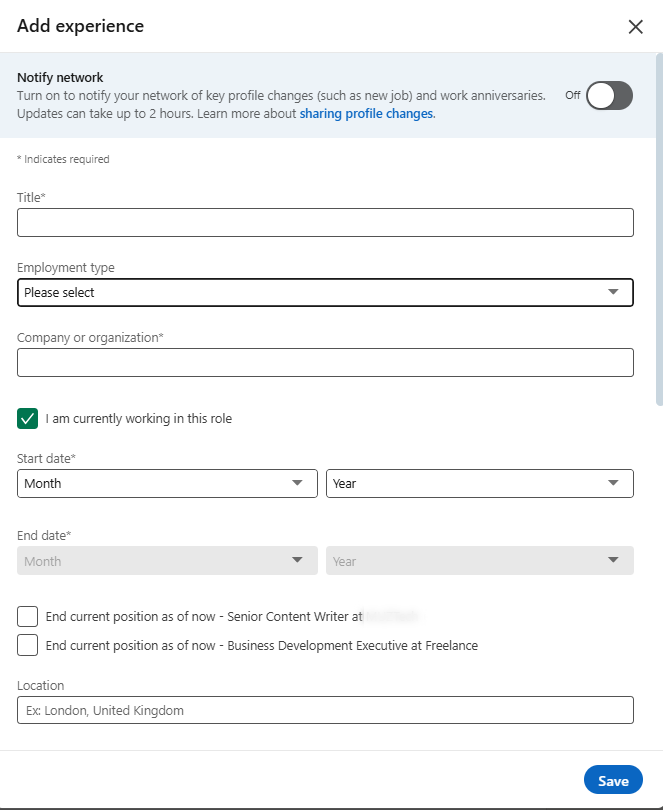
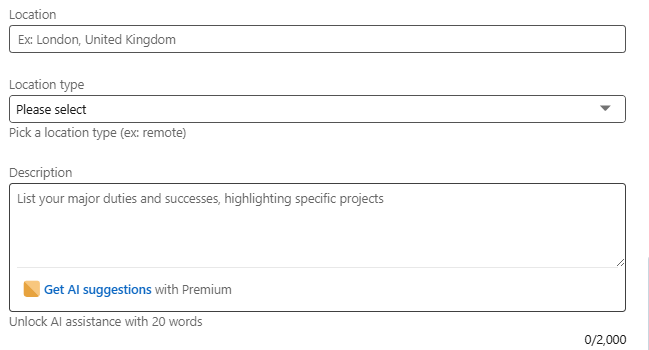
- End your current position as of now
You need to check this option as well.

Please note that if you have more than one current position, those positions will also be highlighted here.

Pro Tip: In the description section, you can add why you got promotion. Received fast track promotion from Product Manager to VP of Product Management by (How did you achieve this?).
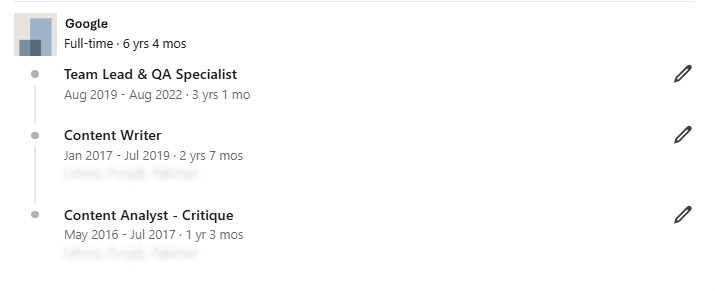
Once you have added all the details, click on “Save”. Refresh your profile and you will find that the new job role status has been updated under the experience section without repeating the employer’s name. Moreover, your previous will be considered as your last role and this title will be updated as a new current job role in the experience section.
After clicking the “Save Button”, your role will be update like below.
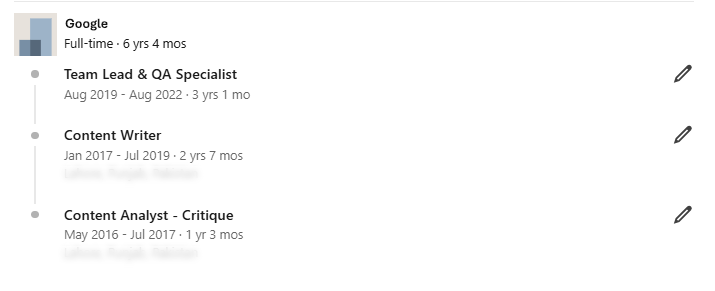
How to add promotion on LinkedIn by editing the current role
If you don’t like to include your new job title within the same company as the new job. You can edit existing experience information. But this approach is not effective and outdated. Go to LinkedIn experience section again and click on ✏️ icon (called Edit Button, Pencil Symbol or Edit Tool). Once you click on Edit Button, you will be able to edit your current role information, including Employer Name”, “Starting Date along with month” and “Description”.
What changes can you make now to update job promotion details?
- Edit the Job Title; replace with new title name
- Add content to description section as very first line
- Received fast track promotion from Product Manager to VP of Product Management by (How did you achieve this?)
- Promoted from Product Manager to VP of Product Management.
- Achieved promotion from Product Manager to VP of Product Management
- Acknowledged with promotion from Product Manager to VP of Product Management
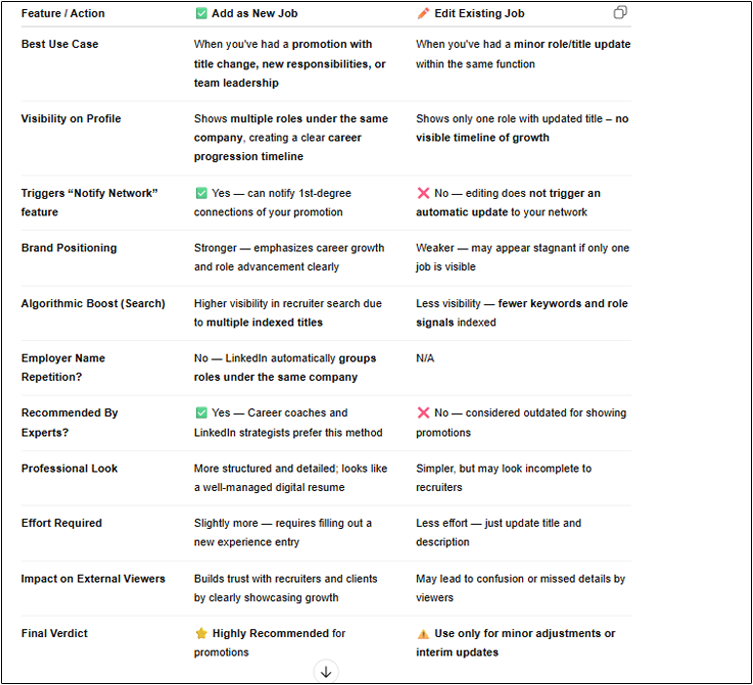
Add as New Job vs. Edit Existing Job: Better for Showing Promotions on LinkedIn?
If you want to showcase your career advancement, gain more visibility in job searches, and signal professional growth, adding a new position under the same company is the best practice. Editing the existing job is faster, but it limits your reach and reduces the impact of your achievements.
Steps to show internal promotion on LinkedIn Headline
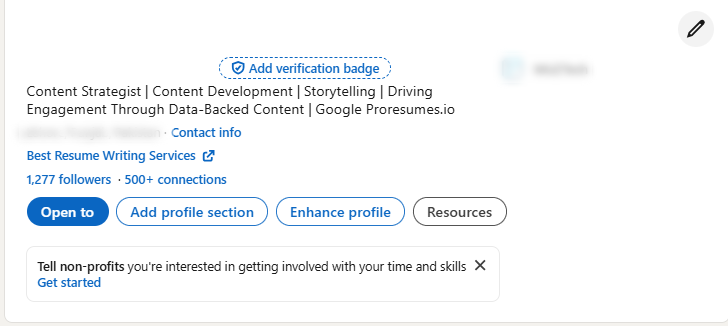
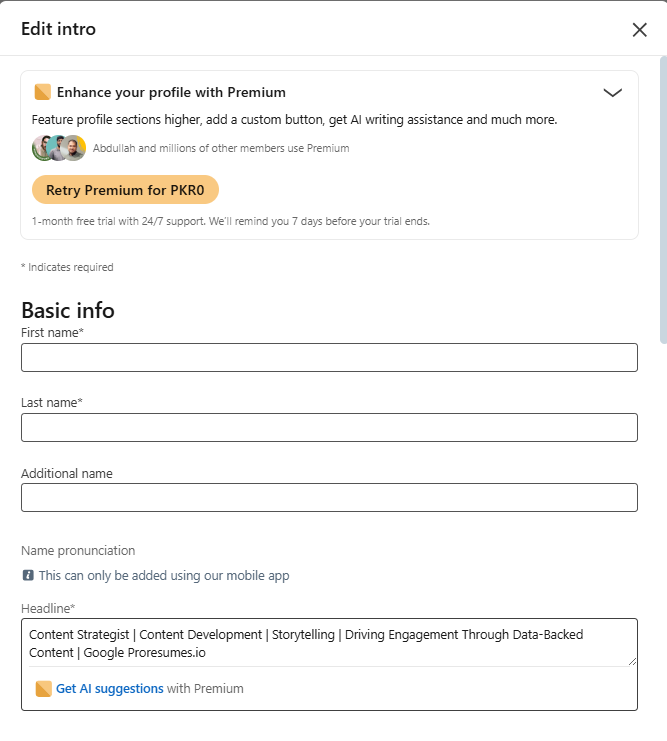
Some people add career progression news in headline as well. But according to Certified Digital Career Strategists (CDCS), the headline is best suited for your core expertise not for adding the promotion on LinkedIn. To edit this in the headline; go your profile, click on the edit button, “Edit into” section will appear and scroll down to headline. Below are the best ways to add this,
1) Just update the title VP of Product Management at XYZ Company
2) Add Promoted to VP of Product Management at XYZ Company
How to cover LinkedIn promotion in About Section
Start your “About” section with a complete statement demonstrating your promotion within the company. Again, this approach is outdated but many users are leveraging this technique as well. Every task can be completed in various ways, but you should focus on professional approaches related to providing updates on LinkedIn promotion within the company. The best way to add under the Experience section header as new job.
Now the question is you have updated the promotion within the same company on LinkedIn but how your 1st degree connections or LinkedIn community will come to know that you have promoted to new role.
Ways to update 1st degree connection and LinkedIn community
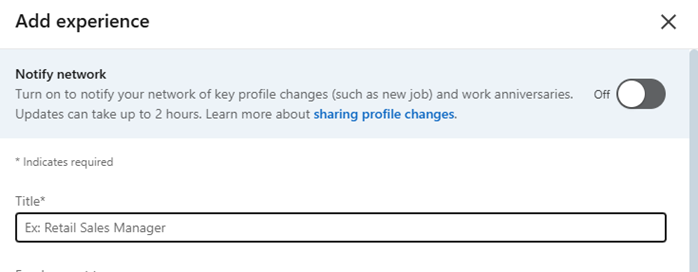
1) Leverage LinkedIn “Notify network” feature.
2) Create a new Post & share on LinkedIn
You can leverage both ways. If the question comes Why both? The answer is simple that notify network just update your 1st degree connections. The post will be visible to global users across the world.
How to turn On the Notify network feature?
When you will add the promotional role as new job to experience section. At the very top of information filling form notify network button will appear and you need to turn it “On” (from black to green). Once you turn on this feature and save the added information, this update will be automatically delivered to your LinkedIn network. Update can take up to 2 hours. If you are going to how will you come to know that your network has been notified? Once your network has been notified, people will start Congratulating you.

Conclusion
Adding promotion on LinkedIn is no longer a daunting task. You can follow the above explained simple steps to update your career promotion. We recommend you show promotion in the same company under the experience section. LinkedIn experience section update is best choice as in future, you can add your accomplishments along with duties when applying for new role. Furthermore, the entire process of managing a job promotion on LinkedIn is part of a LinkedIn makeover and profile optimization. Leveraging LinkedIn features in an effective way can help you in securing your goals 4x faster.