
Create Eye-Catching LinkedIn Banner and Optimize your Profile
According to the LinkedIn statistics, job seekers with complete and optimized profiles have a 71% chance of getting interviewed. Moreover, the LinkedIn profiles with visual elements get 21 times more profile visibility than profiles lacking visuals.
Having a LinkedIn banner in 2026 is as important as optimizing your headline, profile picture or profile summary. This blog will guide you on the significance of having a LinkedIn cover photo, dos, and don’ts. Moreover, learn about creating and uploading the cover image. Make sure that you’ve checked out the samples and best practices for designing your own LinkedIn cover image.
What is a LinkedIn banner?
A LinkedIn banner, additionally known as the header image, background photo, or cover photo. It is the horizontal visual space on the top of your LinkedIn profile and appears behind the profile photo.
It is used as an effective tool to show your expertise through visual branding and build an incredible first impression. This background photo helps you win potential clients or recruiters who visit your profile.
Moreover, it helps a profile visitor understand you and the services or value you offer. Using an effective cover image gives you an edge among the rest of the users when it comes to profile searches.
This is why you need to understand the significance of having a LinkedIn header image and investing in one.
You can understand the cover image’s importance according to Joshua Nanticoke, “It’s crazy how many people overlook the banner.”
How to add a banner to a LinkedIn profile?
Since you understand the importance of having a LinkedIn cover photo, it’s time to learn how to upload one to your profile.
Adding a LinkedIn banner on Web or Mobile devices
Here’s the step-by-step guide to uploading a header image on your LinkedIn profile through a web browser or mobile app:
- If you’re using LinkedIn on the web, go to the “Me” option under your profile photo. LinkedIn users who use the mobile app can simply tap on their profile icon.
- Web users should tap the visit profile option in the dropdown menu.
- Find and click a little camera icon at the upper-right corner of your profile screen on the browser or app.
- After clicking on the camera icon, you will get three options on the web browser, such as:
- Upload a photo: You can personally upload photos from your device’s gallery or drive.
- Choose a photo: LinkedIn gives you some free-to-use, stock images by Lummi to choose for your background photo.
- Create a Slideshow: This option is solely available for LinkedIn Premium users. It gives an option to add up to 5 photos to display a diverse set of expertise and personality.
- The LinkedIn users with the mobile app also get three options, such as the following:
- Take a photo: LinkedIn mobile users are given the option to take live photos and use them as their header image.
- Upload from photos: Users can pick a photo from their image gallery.
- Create a slideshow (only for LinkedIn premium users)
- Once you’ve chosen the header image, you can edit or optimize it with cropping or filters options.
- At the end, click the save button on the mobile app or choose “apply” on the web.
Changing, removing, or repositioning the LinkedIn banner
Here’s how you can change, remove or reposition your existing header image on LinkedIn:
- LinkedIn users on the web click on the “ME” option and view their profile, whereas LinkedIn mobile users can click on their profile icon.
- Tap on the logo of the camera for the editing option.
- You get three options on the web browser, such as:
- Edit: You can edit the photo by rotating, cropping, and using filters.
- Change: Click on this option to replace the existing header image with another one.
- Delete: Click on this option to permanently remove your existing header image.
- LinkedIn mobile users get the following options, including:
- Edit: Use filters, adjustments, rotation, and cropping effects to edit the existing cover photo.
- Upload photo: Choose a new photo to replace the existing photo.
- Delete: Remove existing background photo.
- Once you’ve selected your desired option, choose the “Apply” button on the web or “save” in the mobile app.
How to create a LinkedIn banner?
If you’re interested in creating a banner image yourself, keep the following things in mind:
LinkedIn Banner Dimensions
The banner dimension for a LinkedIn cover photo is 1584 (width) x 396 (height) pixels. Moreover, it is recommended by LinkedIn to choose an image that is less than 8MB in size.
LinkedIn users can choose a JPG or PNG image format for their background photo.
Text placement rules
The left side of the header image is hidden behind the profile picture. It is ideal to keep the text placement, including branding message, CTA, or contact information on the right side.
Background images for the banner
Finding visuals for the background image can be a hassle if you ignore image copyrights and laws. The ideal option is to take a picture personally, according to your industry or personal brand vibe.
Moreover, users can also utilize stock images as their background images. However, it is recommended to use images that are free of copyright.
High Image resolution
Avoiding pixelation is crucial for an effective first impression. It is ideal to avoid using blurry images for your header photo.
Graphic Design tools
LinkedIn users can also benefit from graphic design tools like Canva, Figma, Adobe, and more to design their headers. These design tools offer various customizable banner templates and editing tools.
AI image generator
If you’re unable to design an effective header image yourself, you can give textual prompts to AI image generators.
Designing a cover image from scratch isn’t easy and ProResumesget it!
You can avail premium LinkedIn optimization servicesto get an effective cover photo optimized for your profile.
What are the parts of an effective LinkedIn banner?
To create an effective LinkedIn background photo, make sure to include these parts:
Industry niche
Adding photos or images of yourself in action can give the visitor an idea that the person is trustworthy. Moreover, adding images that relate to your industry helps visually demonstrate “what you do”.
Skills and Expertise
Adding your prominent skills or services on your header image instantly tells the visitor “What will they get”.
Key Achievements
Adding your key achievements or results in the background photo serves as social proof and builds credibility.
Contact Information
Adding your contact information, like email address or phone number, is essential to guide the visitor.
Branding Elements
Adding your personal brand’s colors, logo, messaging, or tagline helps in establishing brand consistency and leaves a good impression.
Call-to-Action (CTA)
Adding a Call-to-action (CTA) to your cover image helps you direct your audience and compel them to take some action.
What are the benefits of having a LinkedIn banner?
Having a banner on your LinkedIn profile comes with these advantages, such as:
Build credibility and social proof
Profile visitors trust you if you show your testimonials, results, and branding elements in the banner.
Clearly highlights your Value
An effective cover image communicates your value proposition and compels a visitor to check your entire profile.
Solidify personal branding
Your banner image is a part of your LinkedIn profile, and optimizing it enhances your brand identity simultaneously. It teases your personality, expertise, and achievements at first glance.
What are the common LinkedIn banner mistakes?
Avoid committing these common mistakes while designing or creating a cover photo:
Using the default background
Your cover photo with the default setting tells the profile visitor that either you don’t care or lack professional expertise.
Using low-quality images
Using blurry, cropped, or pixelated images for your header instantly gives a bad impression and signals a lack of professionalism.
Using random images
Your LinkedIn background photo should only have images that either reflect your personality, brand, or industry. Having photos of random sceneries or pets doesn’t add to the purpose of having a LinkedIn profile.
Best practices and examples to create a LinkedIn banner
Keep these rules in mind while using or designing a LinkedIn header:
Ensure simplicity
It is essential to focus on a simple and clean style and cover design with enough white space. Cover designs that are stuffed with too much text or graphic elements don’t look professional.
Ensure Mobile optimization
The majority of recruiters or potential clients use the LinkedIn mobile app. It is crucial to ensure that your cover photo is optimized for mobile designs for a consistent look across devices.
Ensure readability
It is important to ensure that the text on your header image is readable for every visitor. Incorporate clear and readable text fonts, color combinations, and spaces for seamless readability.
LinkedIn banner examples
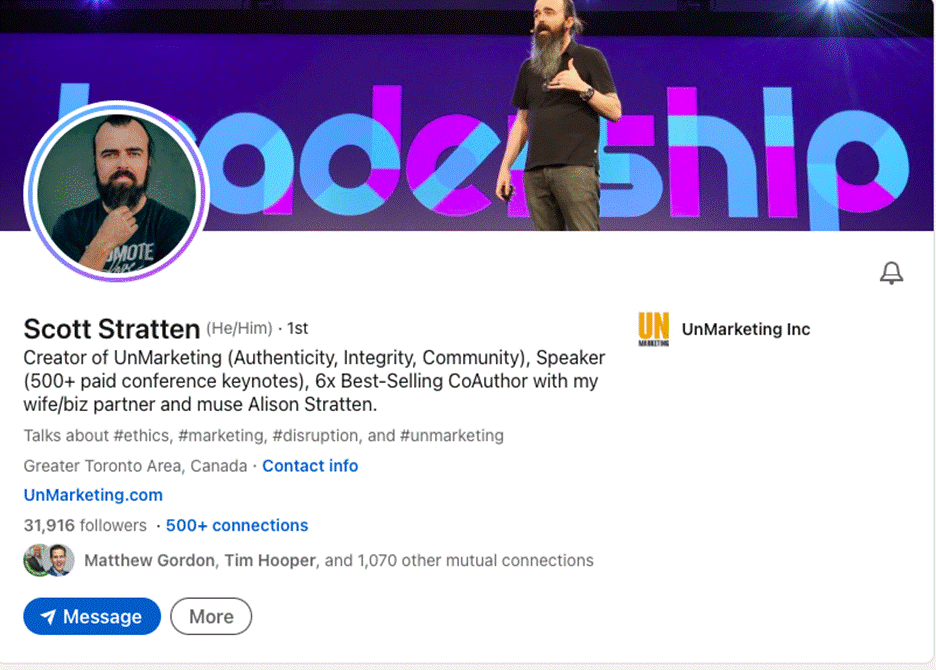
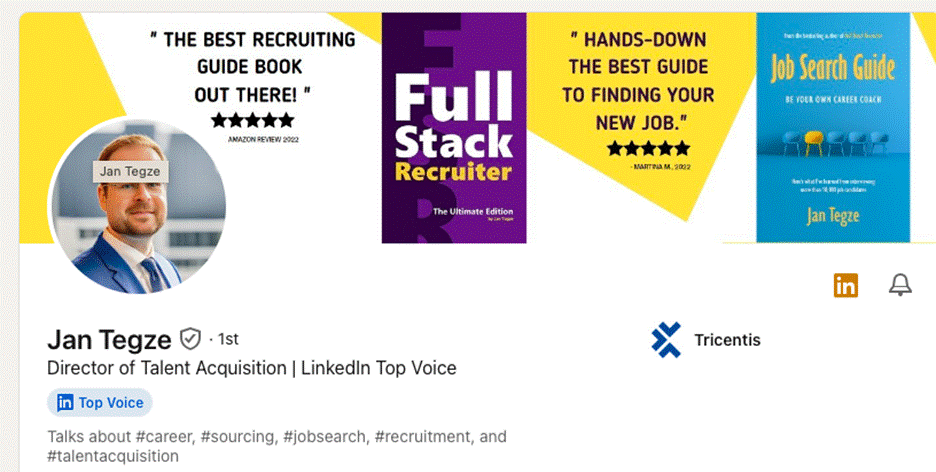
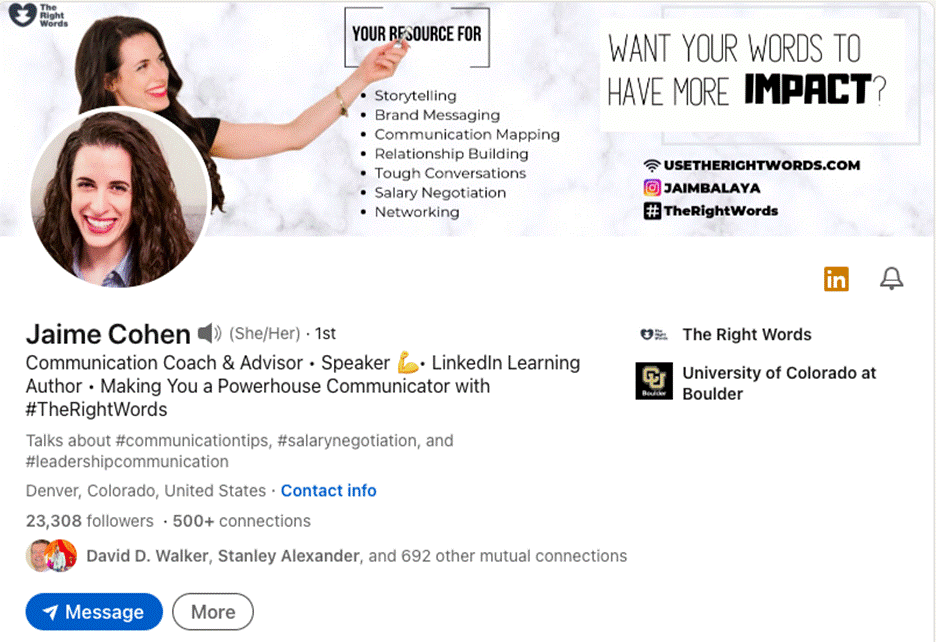
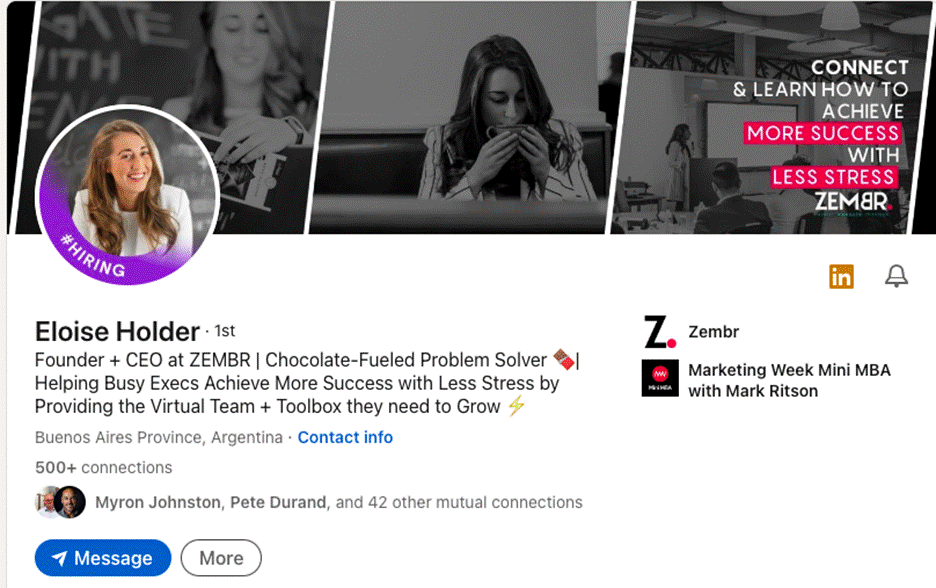
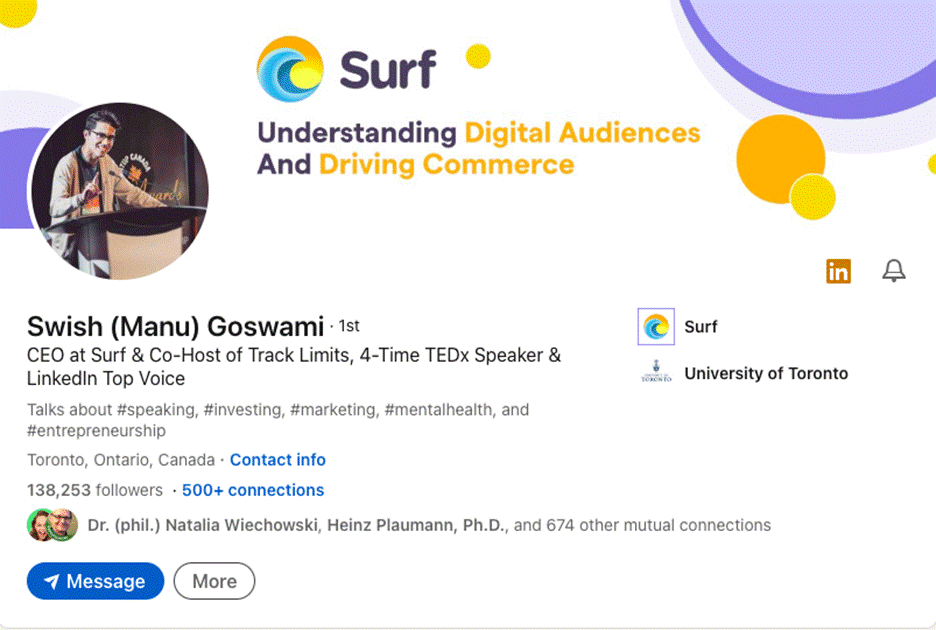
Here are some amazing LinkedIn cover photos by various LinkedIn users to inspire you:
Is having a LinkedIn banner worth it?
Yes, having a LinkedIn background photo is essential to leave a good first impression on your profile visitor.
According to Teddy Burriss, a LinkedIn coach, “Having a LinkedIn profile banner makes it more interesting.”
So, start designing and creating your profile banner or get them done by ProResumes.
Frequently Asked Questions
Q. What are the dimensions of a business page’s LinkedIn banner?
The banner dimensions of the cover photo for a LinkedIn company’s page are 1128 (width) x 382 (height) pixels. This is the recommended and minimum image size mentioned by LinkedIn.
Q. Is it necessary to have a LinkedIn banner for a business page?
Yes, having a custom LinkedIn background image or cover photo builds credibility, shows company culture and gives a call-to-action. Businesses can use this space to show prominent photos, achievements, contact information, and company website addresses.
Q. Should my banner include text?
Yes, your banner should include text if you have a personal brand or a cover photo that depends on graphics. If your background image lacks the element of storytelling, then adding text will be effective for CTAs and brand messages.
Q. What makes a LinkedIn banner look unprofessional?
The following things make a LinkedIn cover image appear unprofessional to a recruiter when visiting your profile:
- LinkedIn default banner.
- Random images of nature or pets.
- Random quotations that don’t align with one’s industry.
Q. How often should I change my LinkedIn banner?
It depends on your professional life. The cover photo of your LinkedIn profile should reflect the upgrades and changes in your professional life. Moreover, some LinkedIn users also change it frequently according to their business updates, seasonal changes, and more.