
How to Add LinkedIn Sections to Your Profile?
Your LinkedIn profile isn’t just another social media profile. It helps you build a personal brand, recruiter search visibility, and proof of work with the help of various LinkedIn sections.
The platform is considered the main career tool that you should have in your job search stack in 2026. Moreover, LinkedIn profile optimization helps you refine the sections on your LinkedIn profile to get better job opportunities.
Explore the best way to use the main LinkedIn sections and subsections to add experiences, achievements, and skills.
Conduct your LinkedIn audit today within 15 minutes to ensure profile optimization.
What are the LinkedIn sections?
Your LinkedIn profile is made up of different parts that are used to describe your professional journey. It states the current experiences of the user along with their past work history and accomplishments in an industry. It also helps in highlighting a professional’s future career aspirations.
The LinkedIn profile sections not only help with describing a professional’s career journey. It also focuses on profile optimization to boost LinkedIn SEO and achieve recruiter visibility.
There are three main sections of a LinkedIn profile, including:
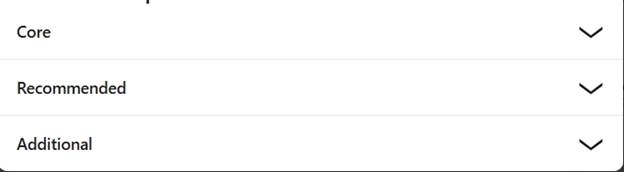
- Core: The purpose of filling out the core LinkedIn sections is to enhance a profile’s visibility in recruiter searches. Moreover, it also gives better exposure to the user by making their content visible in their 1st-degree connection feed.
- Recommended: When professionals or job seekers fill out the information inside recommended sections, they enhance their credibility. It helps the user demonstrate examples of their best work and social proof through client testimonials or recommendations.
- Additional: Apart from the core and recommended LinkedIn sections that focus on expertise and proof, the additional sections show personality. It helps professionals add specific information about themselves to grow their network and build better connections.
Explore the best way for LinkedIn makeover with the help of experts.
How to add a new LinkedIn section on your desktop and mobile?
Here’s how you can add a LinkedIn section to your profile using a desktop and mobile:
For desktop users
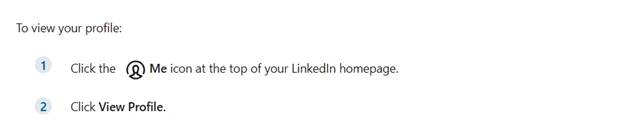
Professionals should open the LinkedIn homepage on their desktop web browser. Then they can search for the “ME” icon in the top navigation bar on their LinkedIn homepage.
After clicking on the “Me” icon, the professionals should click on [View Profile].
For mobile users
Professionals who want to include the LinkedIn sections in their profile on mobile can follow this procedure:
- Open the LinkedIn application on their mobile phone.
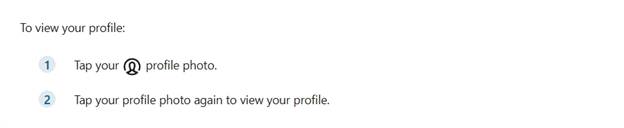
- Click on the small profile picture icon on the top left side of the homepage.
- Click on the profile icon to open their profile page.
Add the profile sections
Once you’ve loaded the profile page on both the mobile and web browser. You can find the [Add section] button within the header of your LinkedIn profile below the LinkedIn followers and connections count.
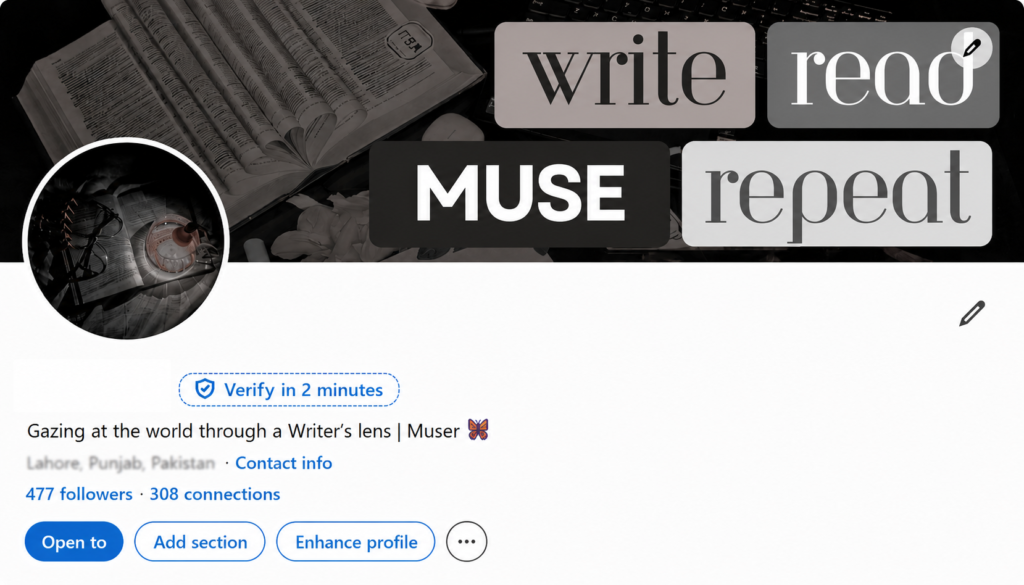
- Click on the [Add section] button on your desktop and mobile.
- Click on the sections such as Core, Recommended, and Additional.
- Click on the subsections provided under each category according to your requirements.
- Include the specific details within the pop-up window in the web browser or subsection page on the LinkedIn app.
- Click on the “Save” button on both mobile and desktop to add the LinkedIn section to your profile.
What are the core LinkedIn sections and how to add or edit them?
The purpose of the core sections of the LinkedIn profile is to build the professional identity of a user. These LinkedIn profile sections help users develop their personal brand or enhance visibility in recruiters’ or clients’ searches.
Here’s a list of all the important sections on LinkedIn under the core sections category:
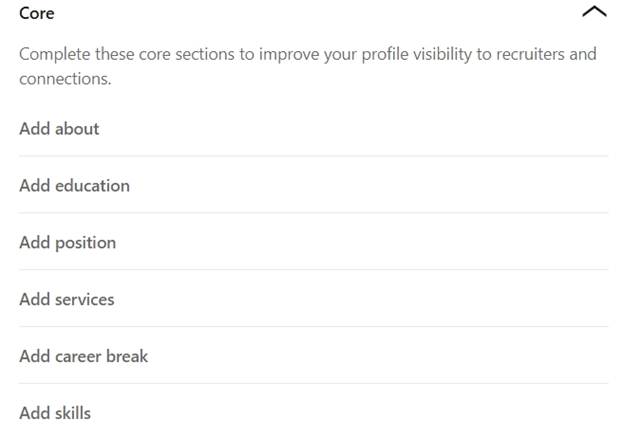
About
The About section during a LinkedIn makeover is also known as the profile summary and is one of the most important sections. It allows the user to write a compelling narrative to share their professional journey and achievements within the 2,600-character limit.
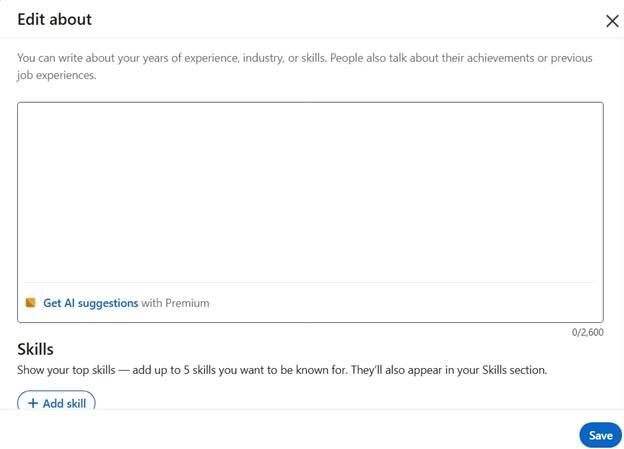
Once you click on the LinkedIn About section under the core section category, you will see the pop-up window or page. Professionals can use this section to be creative and include the following essential details:
- Years of work expertise
- Main industry
- Hard skills and soft skills
- Quantified Achievements
- Previous job details
- Personality touch
- Call-to-Action (CTA)
It is important to click on the “Save” button after adding details to add to this profile section.
Pro Tip: LinkedIn users can add five main skills in the About section which will be automatically included in their skills section.
Learn how to write the About section on LinkedIn with examples and expert guidance.
Education
The Education section on your LinkedIn profile helps in including important details regarding your school and education.
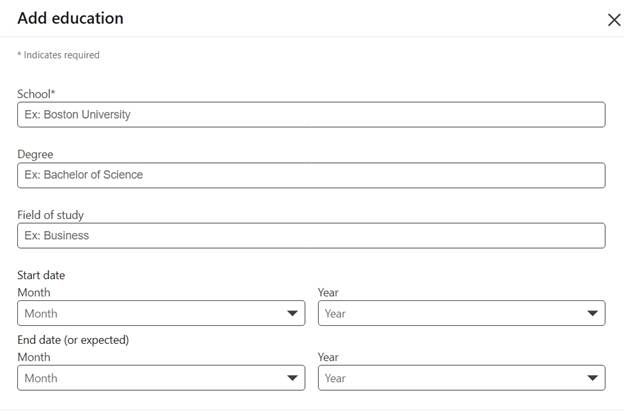
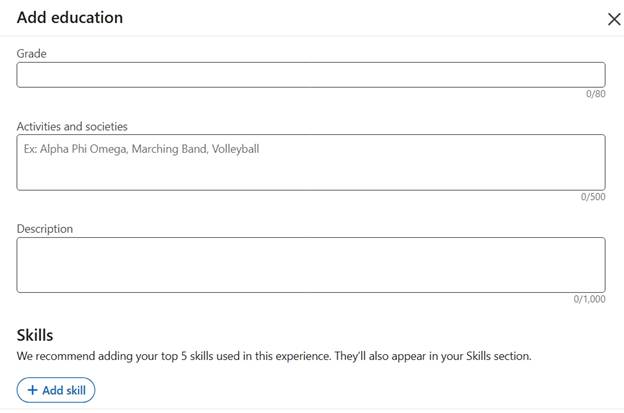

When you click on the subsection “Education” within the core LinkedIn sections, you will be asked to include the following details:
- Name of School
- Name of Degree
- Field of study
- Start and End dates
- Grade details with 80 characters limit
- Activities and Societies within a 500-character limit
- Description of the educational experience within a 1,000-character limit
The applicants can also include the prominent skills they build during this duration in the Education section. These skills will automatically appear in the Skills section of the profile as well.
Moreover, the applicant can also include media such as documents, projects, or certificates relevant to their experience. Users can upload around 50 media files in their Education section in the following formats:
- Adobe PDF
- Microsoft Word
- JPG
- Microsoft PowerPoint
- PNG
Pro Tip: The users can also notify their network regarding education updates by turning on the “Notify Network” option.

Position
This important section on LinkedIn is utilized to add professional experience regarding jobs, volunteering, internships, military service, and more. It also includes nonprofit experiences as well.
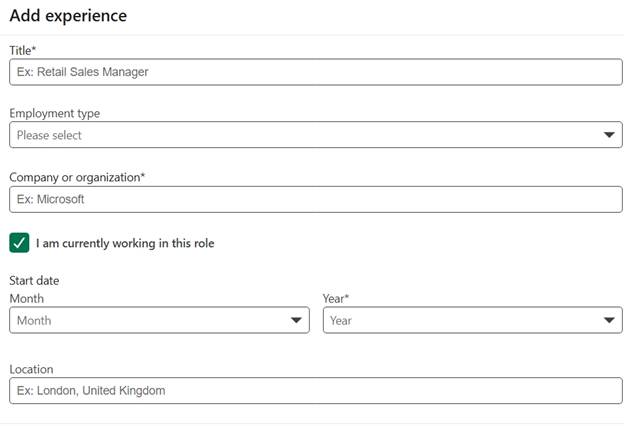
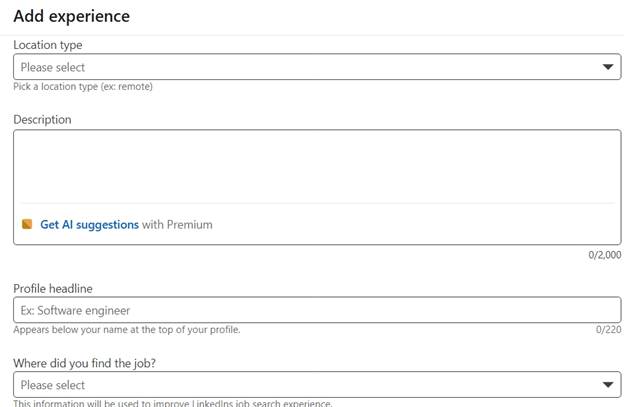
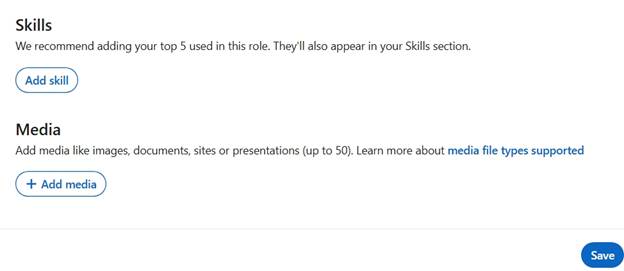
After clicking on the “Position” subsection on LinkedIn, users are required to include the following details:
- Job title
- Type of employment
- Name of organization
- Employment dates (Start date and End date)
- Location
- Location type (On-site, Hybrid, or Remote)
- Description of the work experience with 2,000 characters limit
- Professional headline/ LinkedIn headline within 220 characters
- Top 5 skills for the role
- Up to 50 media files for the experience section
Pro Tip: It is important to focus on the LinkedIn headline and utilize the following formula to create it:
[(Years of Expertise) + (Job title) + (Main skills) + (Value proposition)]
Services
The Services section, with core LinkedIn sections, is used as a landing page to attract clients. It is best for freelancers and consultants, and it allows them to generate leads and add additional media or details.
According to LinkedIn, the services section works in the following way:
- The user includes their work preferences and service details.
- Their profile appears in the searches of clients when they search for the same services.
- The services are displayed on the user’s profile of the user.
- The visibility of the user increases, and clients reach out to them.
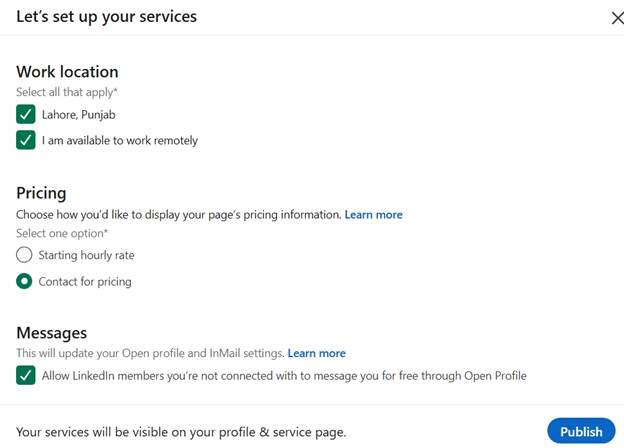
Here’s how a user can set up the LinkedIn Service page by including the following details after clicking on the “Service” subsection:
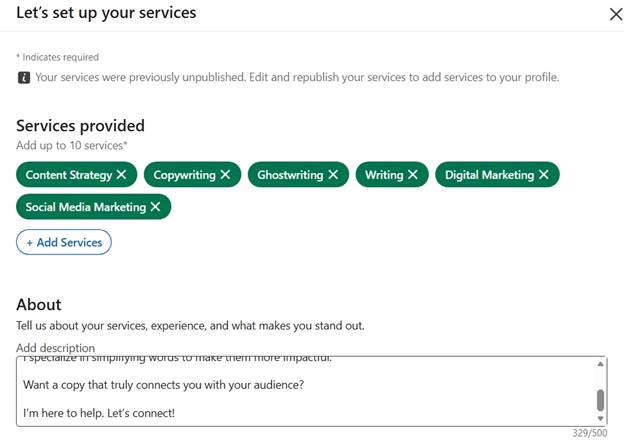
- Include up to 10 main services according to your industry or skills.
- Write an About section with a 500-character limit to explain your services in detail or to use a call-to-action (CTA).
- Include your current work location and your choice to work in a remote capacity.
- Applicants can include their pricing range by telling buyers their starting hourly rate. This helps the clients verify the minimum you will charge for an hour. Moreover, LinkedIn users can also use the other option “contact for pricing”.
- Premium LinkedIn users can also include media, photos, videos, and website links to their Service page.
- The applicants can also check the message box to receive LinkedIn messages from clients regardless of their degree of connection.
Career break
This LinkedIn section is used by professionals to be transparent about the time spent without doing any traditional work. It helps in explaining the causes of one’s career break, like going back to school, parenting, or having health issues.
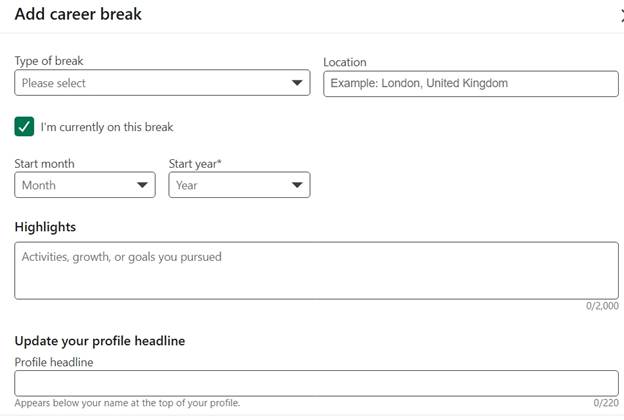
The career break LinkedIn section allows the user to include the following essential details:
- Type of break, such as travel, voluntary work, caregiving, career transition, gap year, and more.
- Include your current location.
- Check the box if you’re still on your career break.
- If the career break happened in the past, include the start and end dates.
- In the highlight field, users can add details regarding why they took the career break within 2,000 characters. Moreover, the professional can also include any new skills they developed or courses they took during the break.
- Include a professional headline that relates to your current professional status.
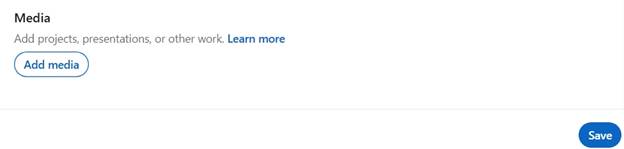
- Include any media in the form of presentations or projects.
Skills
This section of LinkedIn helps the profile visitor to learn more about the professional’s expertise. It highlights the user’s strengths in different areas and enhances their profile search appearances.
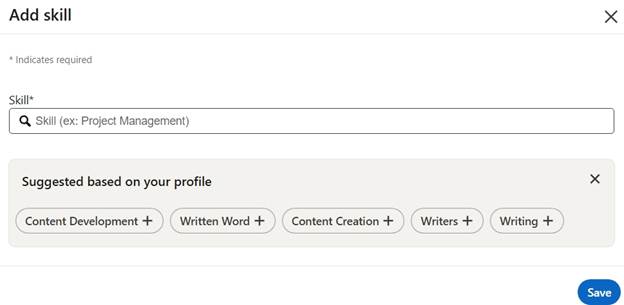
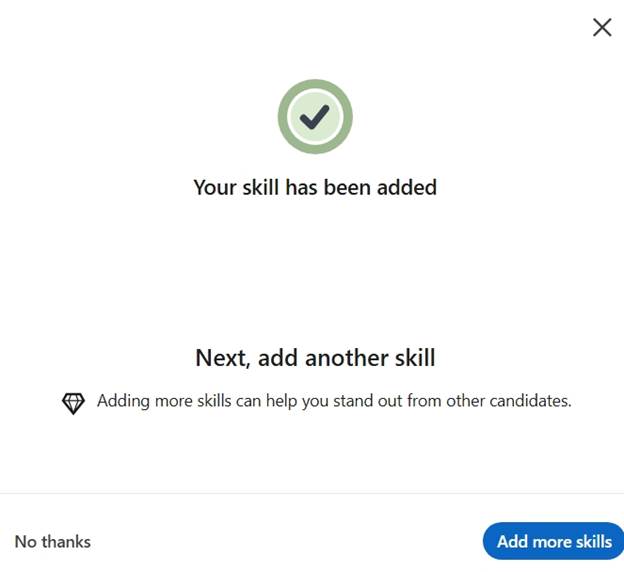
The user will get the above pop-up window or page after clicking on the Skills section below the core LinkedIn sections:
- Include skills according to your industry and role.
- Include the skills from the suggestions based on your profile.
- Include more skills by clicking on the [Add more skills] button.
Pro Tip: Adding the context where you’ve applied the specific skills helps in enhancing recruiter optimization.
How to edit or include the recommended LinkedIn sections on your profile?
LinkedIn users use the recommended LinkedIn profile sections to stand out among the professionals in their industry. The content of these sections helps build credibility to attract clients and recruiters.
The following LinkedIn sections are part of the recommended sections that you can add on your profile:
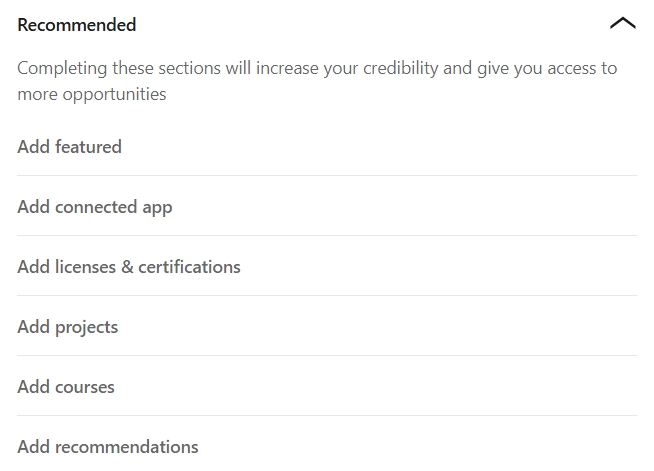
Featured
This section appears near the top of the LinkedIn profile and highlights all the important career milestones. This helps the user show social proof and quantified achievements by pinning testimonials, high-quality posts, and articles.
When the professional clicks on the Featured subsection below the recommended LinkedIn section, they are directed to this page:

The applicants get the following types of options to highlight their content and expertise:
- Add a post from your published posts.
- Add an article from your published LinkedIn articles.
- Add a link to a video, file, or an article.
- Add an image from your desktop or mobile phone.
- Add a document from your desktop or mobile phone.
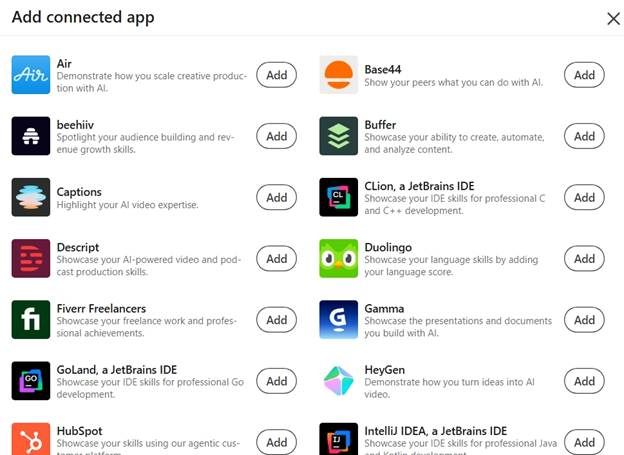
Connected app
This section helps in excluding fake resume claims regarding proficiency in using particular technologies or software. LinkedIn users are required to connect their profile with the particular app profile to get verified capability statements.
LinkedIn offers around 27 connected apps, including Duolingo, HubSpot, Gamma, Air, Buffer, and more.
Licenses and Certifications
This is one of the important LinkedIn sections that helps users provide proof of their certifications and learning. It gives one an edge compared to users who only add their skills without any context.
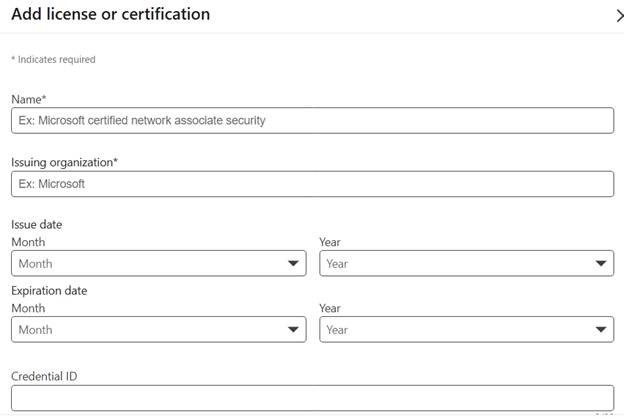
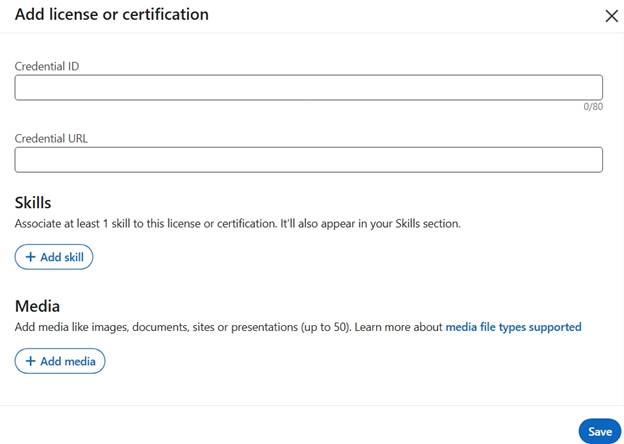
Here’s a list of details that are required in the Licenses and certifications section:
- Name of the certification
- Issuing organization of the license or certification
- Issue and Expiry date for certification
- Credential ID
- Credential URL
- One skill related to the certification or license
- Add up to 50 media files, including images or projects
Projects
This LinkedIn profile section helps users showcase the number of projects they have completed alone or with teams. It helps in keyword optimization to enhance search visibility. Moreover, it provides proof of work in the form of quantified results.
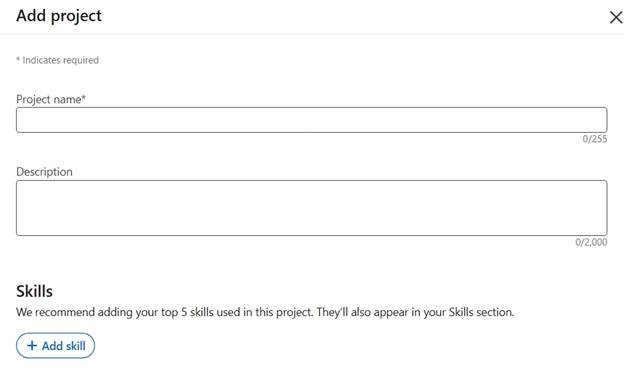
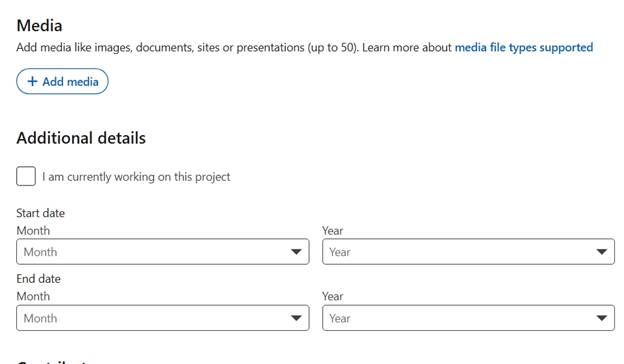
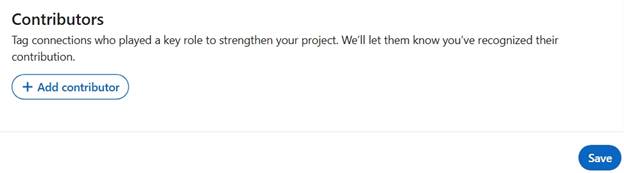
LinkedIn users are required to include the following details in the projects section:
- Project name within 255 characters
- Project description with 2,000 characters limit
- Five top skills related to the project
- Up to 50 relevant media files
- Start and End dates of the project
- Tag contributors to recognize their efforts
Courses
The courses section is among the important LinkedIn sections for freshers and students with no work experience. They can highlight their relevant coursework to highlight their educational expertise.
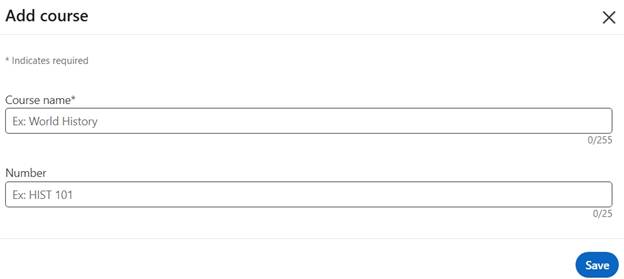
When users click on the Courses subsection under the recommended LinkedIn sections, they will see a pop-up like the above image. They can add these details to show their courses:
- Course name with 255 characters limit
- Course number with 25 characters limit
Recommendations
The recommendations section is among the most important LinkedIn sections. It helps users ask their 1st-degree LinkedIn connections for recommendations to enhance profile strength and credibility.
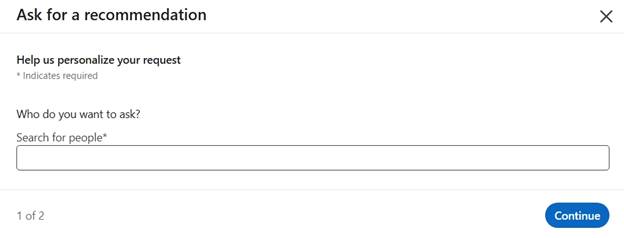
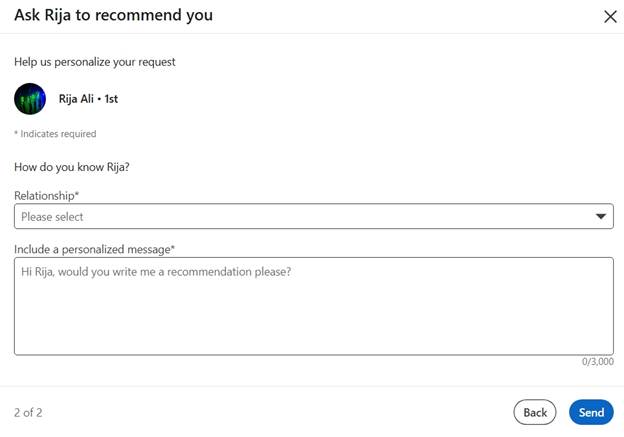
The process of asking a recommendation from your connection looks like the following:
- Look for a connection who can give you a strong recommendation.
- Include your relationship with the connection, such as your client, past employer, mentor, and more.
- Include a personalized message with 3,000 characters limit to convince your connection to give you a recommendation.
What are additional sections on a LinkedIn profile, and how to include or edit those sections?
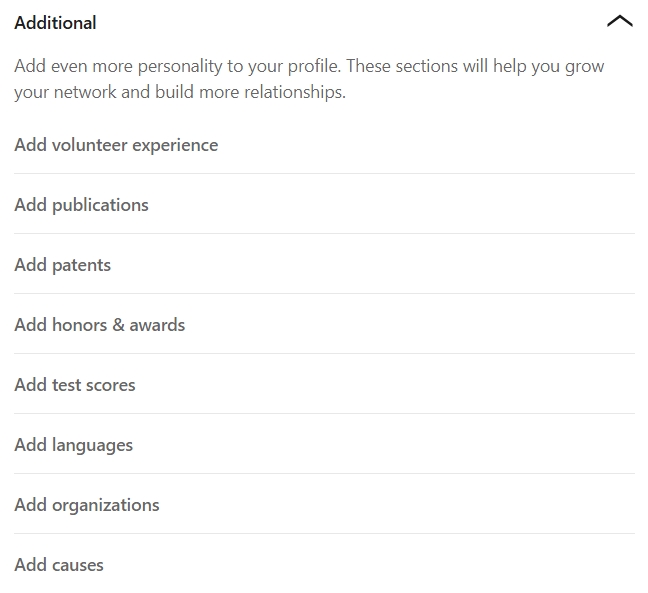
The additional sections on your LinkedIn profile are used to boost LinkedIn SEO and showcase soft skills and personality touch. It helps with keyword optimization and connection building on the LinkedIn platform.
The following are the optional LinkedIn sections for professionals:
Volunteer experience
This optional section of LinkedIn is worth adding to your profile as it demonstrates one’s ability to give back to their community.
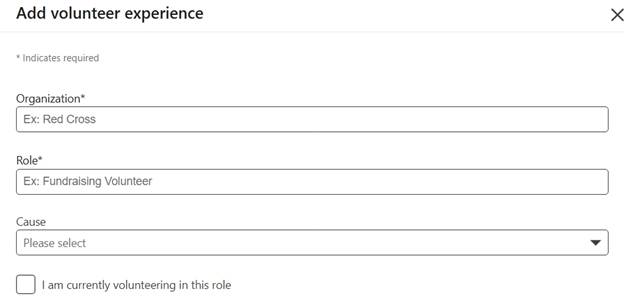
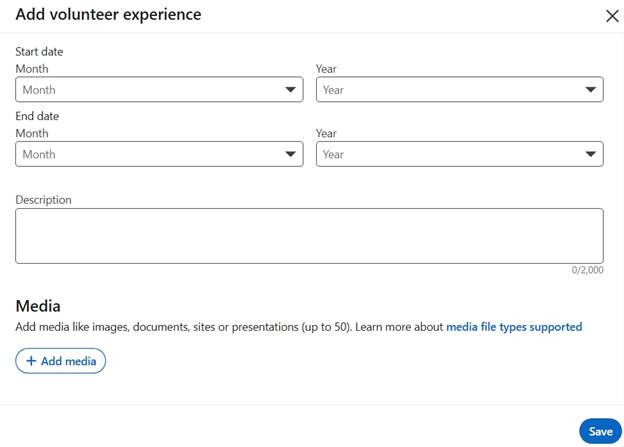
Here’s a list of details that users should include in the Volunteer experience section:
- Name of organization.
- Role while volunteering.
- The causes of volunteering include health, education, human rights, and more.
- Tick the box if you’re currently volunteering.
- Start and end dates of volunteering experience
- Volunteering experience description with 2,000 characters limit.
- Up to 50 relevant media files.
Publications
This is among the important LinkedIn sections that allow the users to include any publications that featured their work. It helps in including a verified archive of one’s published written articles, research papers, or more.
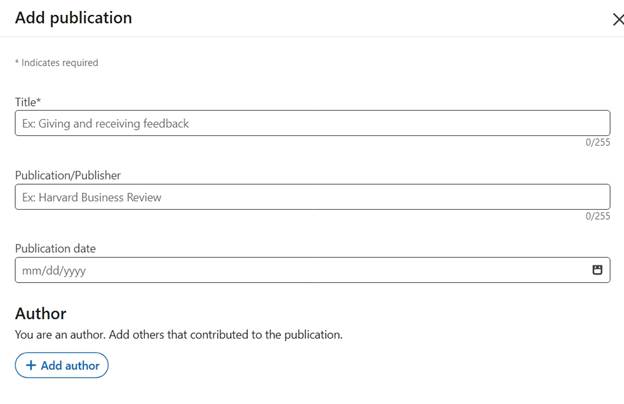
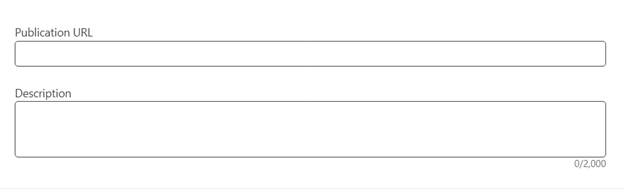
The following is the list of elements that are required for this optional LinkedIn section:
- Title of publication with 255 characters limit.
- Publication or the publisher’s name within 255 characters.
- Date of publication.
- Include the names of other authors who have contributed to a publication.
- URL of the publication.
- Description of the publication with 2,000 characters limit.
Patents
It allows users to include any kind of patents they have received or applied for. It helps in showcasing the technical expertise of the professional and shows proof of granted or even pending intellectual property.
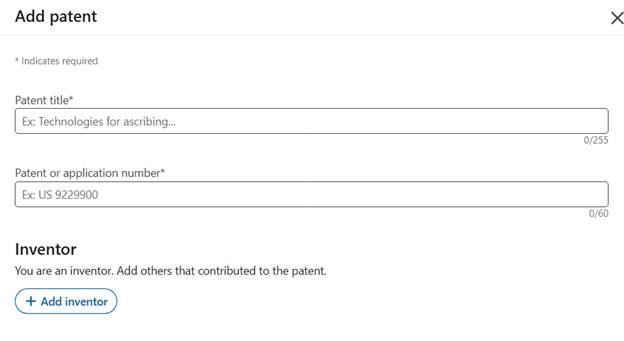
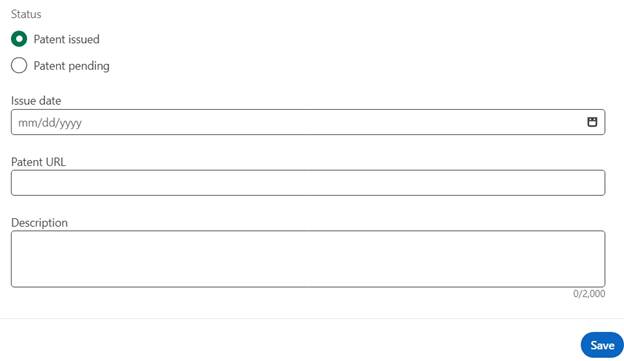
Here’s a list of details that should be included in the patent subsection under the additional LinkedIn sections:
- Title of patent
- Application or patent number
- Name of other inventors
- Status of patent: issued or pending
- Issue date
- Patent URL
- Patent description with 2,000 characters limit
Honors & Awards
This LinkedIn subsection within the optional LinkedIn sections category helps in showcasing proof of work. It provides credibility of one’s expertise and hard skills proficiency.

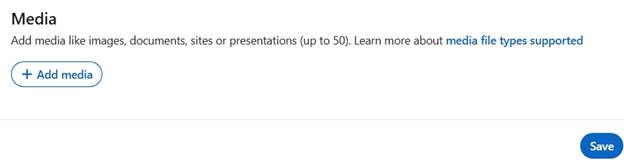
Here’s a list of elements that applicants should include within honors and awards:
- Award title
- Name of issuing organization or institute
- Issue data
- Awards description with 2,000 characters limit
- Up to 50 media files
Test scores
Students who don’t have enough work experience can verify their educational expertise and technical skills with academic results.
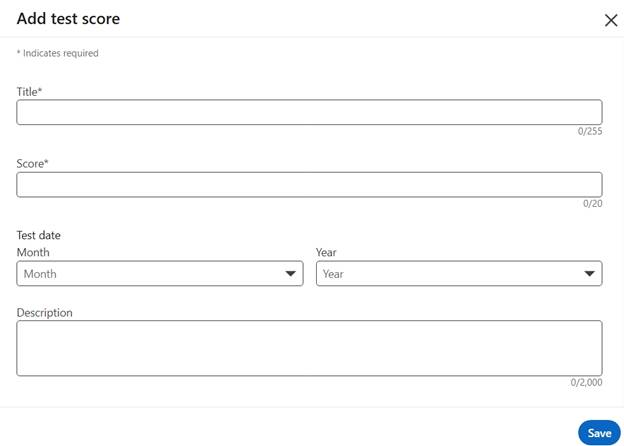
Here’s a list of the elements included in this LinkedIn subsection:
- Subject title
- Obtained score
- Test date
- Description of Test within 2,000 characters
Languages
The languages subsection within the optional LinkedIn sections helps professionals showcase their bilingualism or multilingualism. They can include the languages they are fluent in to enhance keyword optimization and recruiter search visibility.
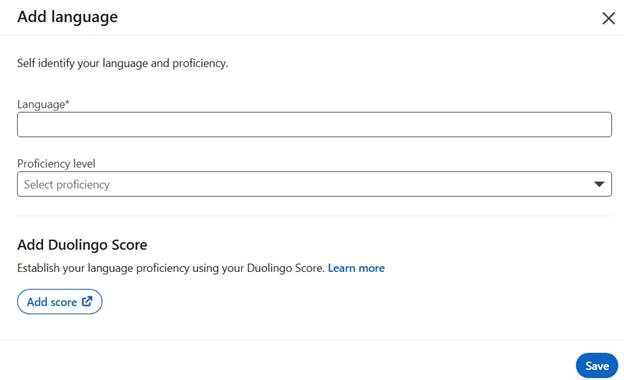
Professionals can include the following details in the Languages LinkedIn section:
- Name of language
- Choose proficiency levels among professional, native, limited, elementary and more.
- Include your Duolingo language proficiency score.
Organizations
The organization’s subsection helps professionals in showcasing their links with other industries, communities, or nonprofit organizations.
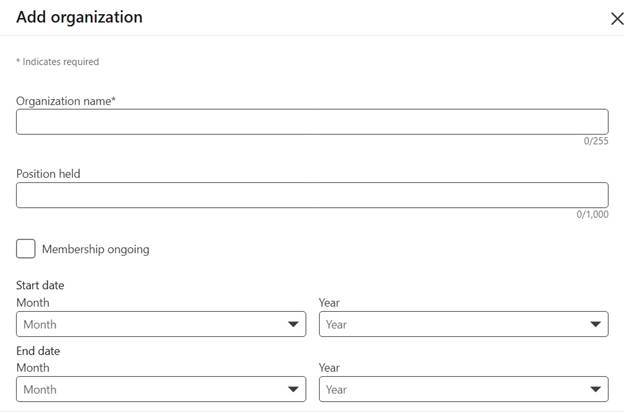
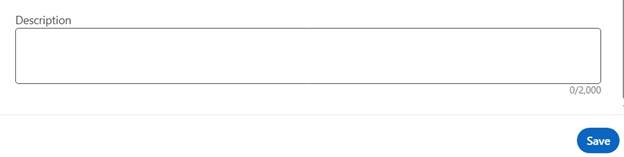
Here’s a list of elements that should be a part of this LinkedIn profile section:
- Name of organization
- Position held
- Ongoing membership verification
- Start and end dates
- Description of community experience within 2,000 characters limit.
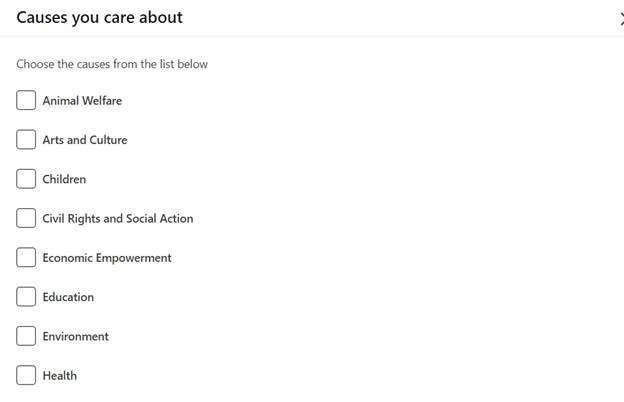
Causes
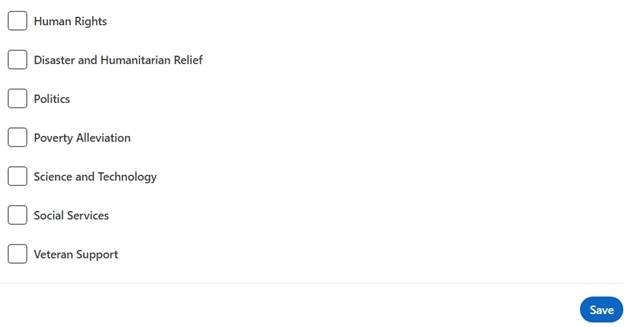
The “causes” subsection is used to show your personality outside the traditional job world. It shows your values and the societal causes you stand for. Applicants can check the causes they actually stand for among the following 15 social causes.
Wrapping Up
The LinkedIn sections are the main units that build the entire structure of your LinkedIn profile. Adding the essential subsections from the core, recommended, and additional profile sections helps in showcasing expertise and social proof.
Learn how to build your authority on LinkedIn by profile optimization.
Frequently Asked Questions
Q. Can you reorder or customize sections on LinkedIn?
No, LinkedIn used to allow its users to reorder sections on their profile through the drag-and-drop feature. However, now this specific feature is limited to organizing the items added within specific LinkedIn sections.
For Example: Users can reorder their skills within the Skills section or pin things in the Featured section.
Q. Which LinkedIn sections are required for “All-Star” profile status?
According to ProResumes experts, you are required to complete seven main LinkedIn profile sections to get All-Star status. These sections include the following:
- Profile photo
- Location
- Industry
- Position
- Skills
- LinkedIn About / Profile summary
LinkedIn users who complete all these sections achieve All-Star status for their profile. It means that the profile will be more visible to recruiters and decision-makers from your industry.
Moreover, profiles that achieve profile completeness observe an increase in profile search appearances as well. Moreover, it also allows users to participate in LinkedIn collaborative articles.