
How LinkedIn Profile Views and Privacy Features Work?
LinkedIn features allow you to set your profile visibility to public, to just your 1st degree connections, or to keep it private to you as well. Every time you find a notification that someone viewed your profile on LinkedIn, a lot of questions arise in our minds.
For example, when we visit or analyze someone’s profile, they will also be able to check our profile. Yes, the professional networking platform sends notifications to foster genuine professional networking and build connections.
What is the LinkedIn profile view feature?
The LinkedIn viewer insights allow users to check who has viewed their profiles. This LinkedIn visitor tracking feature allows you to understand who is interested in making connections with you and how other professionals are looking for your profile. LinkedIn profile visitors can be your previous colleagues, any potential client looking for the services you offer, a recruiter, or a previous batchmate. Here are the key functions of the profile viewing feature:
- Shows profile name, photo, and job title; however, their privacy settings matter.
- Free accounts allow users to view only the last 5 people who visited their profile.
- Premium accounts offer 90-day detailed insights.
Users can determine their LinkedIn profile performance while using this feature. Profile analytics can help users identify the industries from which most profile views are coming. By leveraging this insight, they can tailor their profile to better align with that industry’s expectations and build more targeted, meaningful connections within that field.
How can users check LinkedIn profile views notifications?
This platform makes it easy to see your LinkedIn profile view history. It offers different ways to check, so users can choose the method that works best for them. Whether it’s through email, app notifications, or directly on your profile.
Direct profile access method
- Visit the LinkedIn homepage.
- Click the “Me” icon at the top of your home page.
- Select the “View Profile” option
- Then click “Who viewed your profile” to see your profile visitors.
View profile visits through notifications
The social networking platform also sends notifications to its users, keeping them aware of their profile views. Users can find these notifications in their email or within the LinkedIn mobile application. If users do not want to receive these notifications, they can also turn them off while adjusting their settings.
How do other professionals see you when you visit their profile
Like the social networking platform notifies you when someone views your profile, similarly, others also find your profile. However, limiting information accessibility depends on users’ privacy settings. To control visibility, LinkedIn offers three options:
Public mode
By switching to public mode, LinkedIn users allow other professionals to view their complete profile name, job title, photo, location, and other information. It is like greeting your profile visitors with your business card. This feature supports active networking because it helps other professionals to view their skills.
Semi-private mode
Semi-private mode allows users to hide their full identity while still displaying limited professional details when necessary. Other professionals receive users’ profile viewing secrets, but it hides your name. In this mode, the notification appears as “someone in the marketing industry” or “Manager of ABC company” viewed your profile. This feature is very useful when users do not want to reveal their complete identity but still give others a brief idea about their professional background.
Private mode
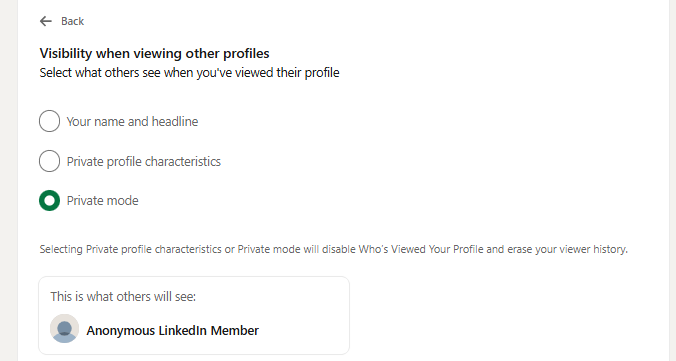
Private Mode allows users to anonymously view other professionals’ profiles. However, they get notifications, but the user’s name appears as “anonymous LinkedIn member”. This feature helps in specific tasks such as researching competitors, confidential job search, and candidate screening.
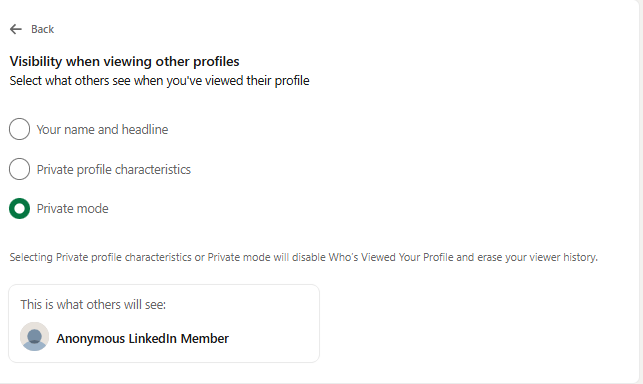
Availability of visibility settings
Visibility settings are available for all kinds of users, whether they are using the LinkedIn free version or a premium subscription. The professional networking platform allows users to customize settings as per their networking requirements.
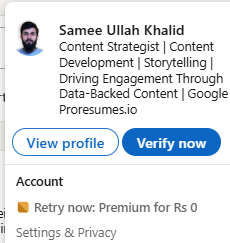
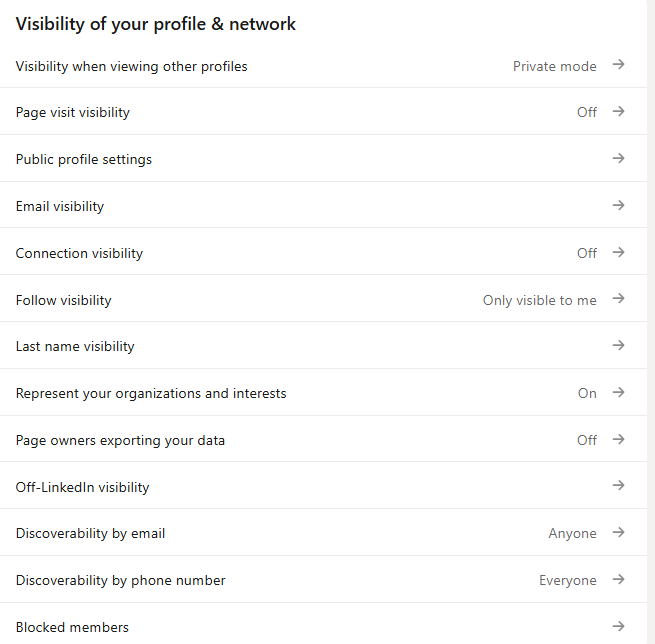
Click on the “Me” profile icon and go to “Settings & Privacy.”
After clicking on Settings & Privacy, go to the Visibility feature.
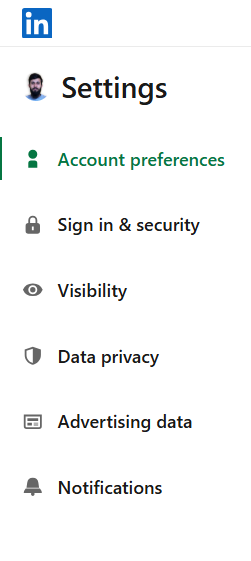
After clicking on Visibility, you can find the settings below to adjust per your requirements.
Does the LinkedIn profile feature also work in private mode?
Yes. The LinkedIn profile view feature works in private mode. However, when users browse profiles of other professionals in private mode, they trade off some features when others view their profiles. Anonymously viewing profiles of other professionals also limits their access to detailed information about those who visited their profile.
How to enable private browsing?
Follow these steps to set up private browsing in your LinkedIn profile:
- Click the “Me” icon.
- Select “Settings & Privacy”
- Click “Visibility” from the left side menu bar.
- Select “Profile viewing options.”
- Choose your mode: “Public”, “Semi-Private,” or “Private”.
Important things to consider
- Free users do not get access to viewer history when they are in private mode.
- Premium users can still track their profile visitors in private mode.
- Users cannot see the names of professionals who have activated private mode.
- Even after switching to public mode, it takes 24 hours to restore viewer history.
Professional etiquette and privacy tips
Most of the users naturally become curious when someone views their profiles. Take it as a routine activity and avoid overthinking about this. Many people visit profiles just for exploring, not for inspecting others’ profiles. On LinkedIn, keep your interactions professional and start a conversation with a respectful and polite tone. Follow the rules of the world’s leading professional networking platform, like avoiding spam and creating fake accounts. Do not write anything inappropriate that does not meet the standards of professional platforms.
Wrapping up
A better understanding of LinkedIn’s features and visibility settings can help users improve their professional presence. Setting a specific mode depends on your networking goals and strategy to improve profile credibility. Focus on building meaningful connections that can translate into future career opportunities.